Quick Start
Create your first AI-generated website in 10 minutes.
- AI Workflow Framework installed (Installation Guide)
- OpenAI API key (or other AI provider)
Step 1: Configure AI Provider
First, set up your AI provider to enable content generation.
Navigate to AI Workflows → Configuration → AI Providers
Click Create and fill in:
- Name: OpenAI GPT-4
- Provider Type: OpenAI
- API Key: sk-your-api-key-here
- Model: gpt-4
Click Save then Test Connection to verify it works.
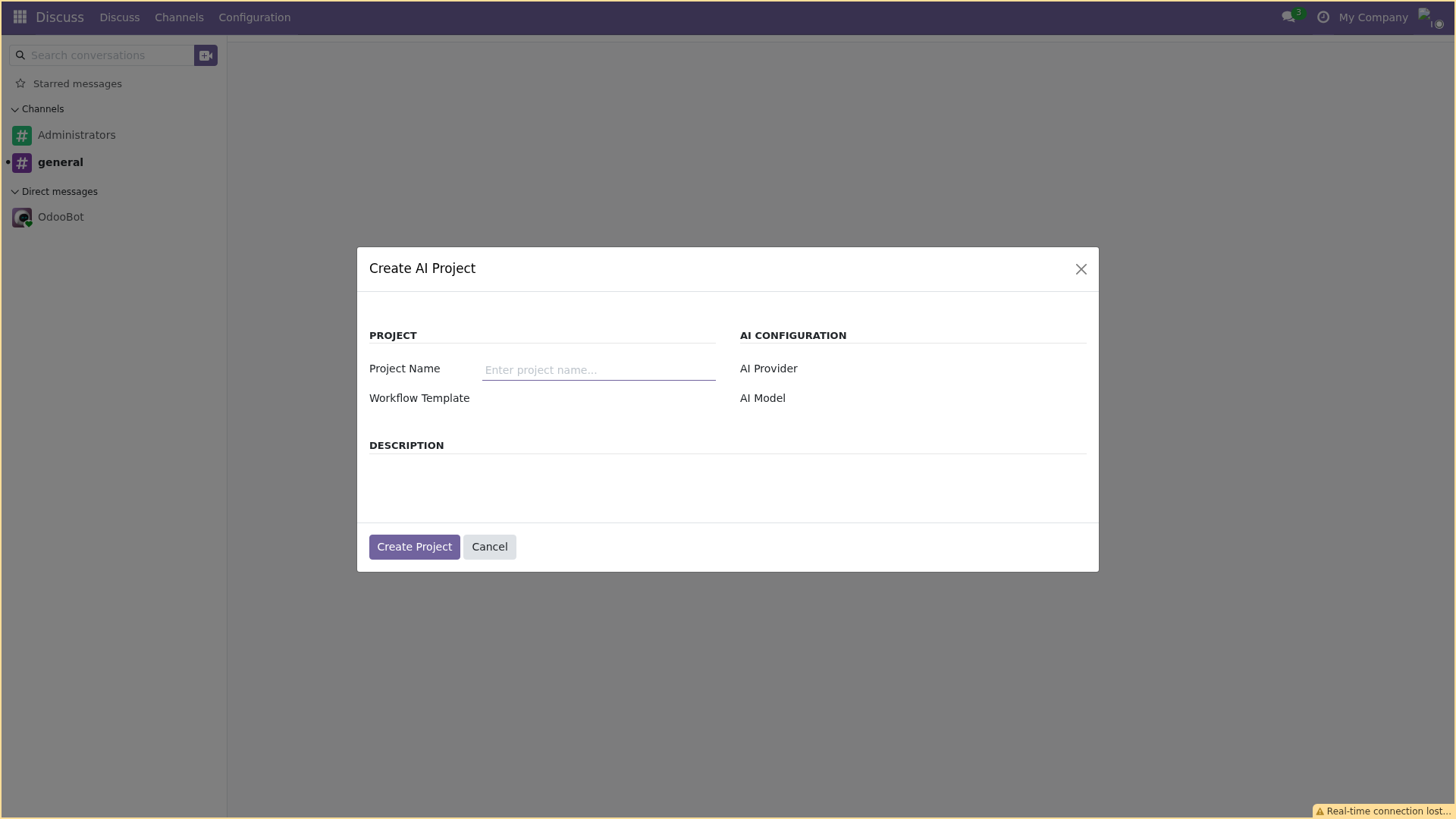
AI Provider configuration screen
Step 2: Create Your First Project
Now let's create a website using the portal wizard.
Navigate to /my/create-website or click Create Website from the portal.
- Website Name: My First Website
- Industry: Technology
- Website Type: Corporate/Business
- Pages: 5
- Description: A professional website for a software company
Click Create My Website. You'll be redirected to the project dashboard.
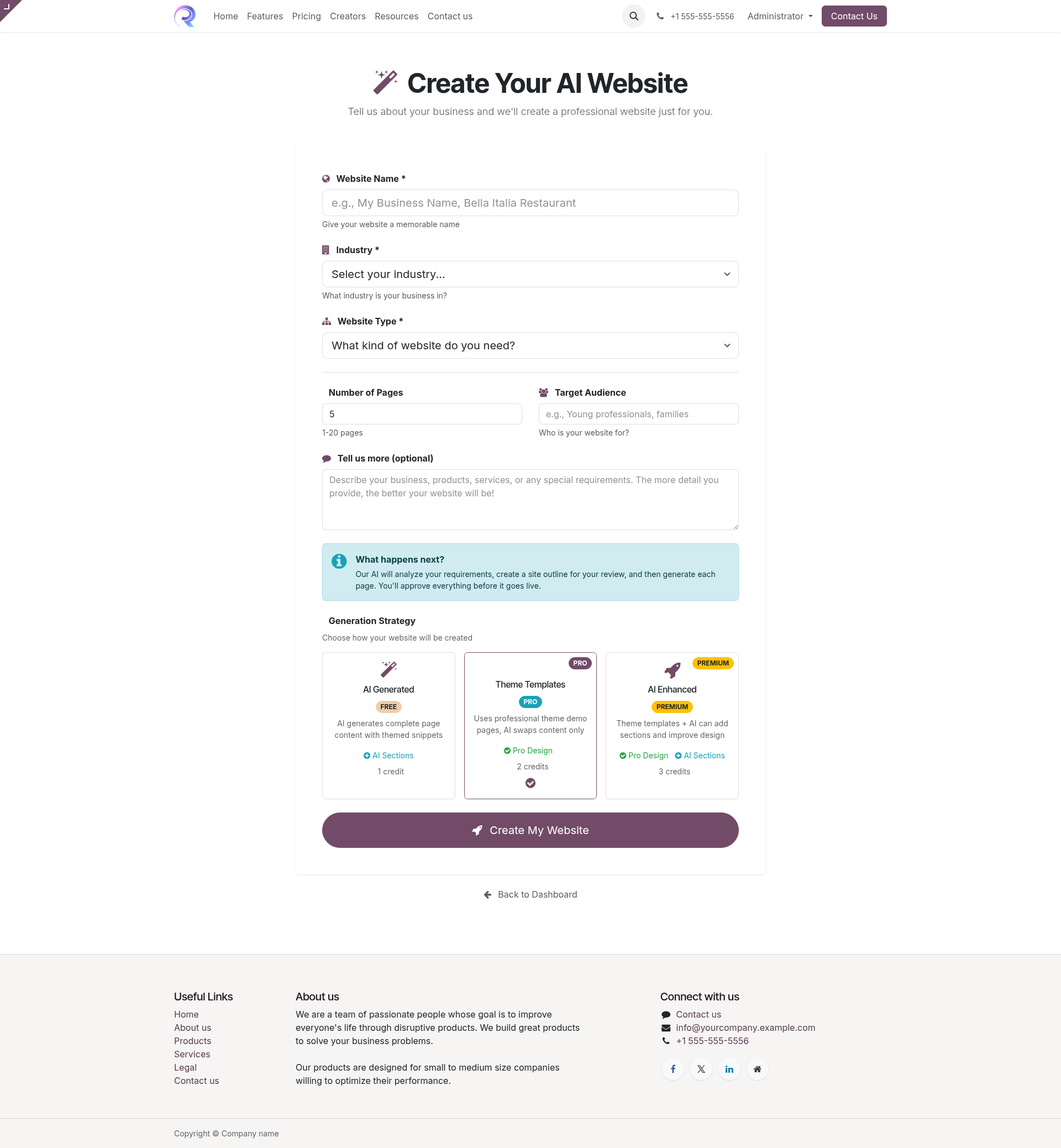
Website creation wizard
Step 3: Review and Approve
The workflow includes approval checkpoints where you review AI-generated content.
Design Review (Stage 2)
After the Discovery stage completes (~2-5 minutes), you'll see a notification that approval is needed. Review the proposed site structure:
- Check the page list and purposes
- Review the content outline for each page
- Click Approve to continue or Request Changes if needed
Page Review (Stage 6)
After pages are generated (~10-20 minutes), review each page:
- Preview the generated content
- Make any direct edits if needed
- Click Approve to publish
Step 4: View the Result
Once approved, your website is published! You can:
- View the live website in the Website module
- Edit pages using the website builder
- Customize design and styling
You've created your first AI-generated website. Explore other workflows like Ebook or Course creation, or dive deeper into Configuration.